This is the multi-page printable view of this section. .
Contribution Guidelines
- 1: Contribute to the HugeGraph Community
- 2: Subscribe to the Community Mailing List
- 3: Validate Apache Release
- 4: Setup Server in IDEA (Dev)
- 5: Apache HugeGraph Committer Guide
Read the contribution process before submitting code or documentation. Separate pages cover committer nominations, mailing-list subscriptions, and release validation. Contributor agreements follow the official ASF ICLA/CCLA process.
1 - Contribute to the HugeGraph Community
Choose How to Contribute
You can report problems through GitHub Issues, or contribute code, tests, or documentation. Before starting a substantial change, consider opening an issue that explains its scope to avoid duplicated work.
The following example uses apache/hugegraph. The same process applies to other HugeGraph repositories, but follow each repository’s README.md, AGENTS.md, and CI configuration for its build and test commands.
Prepare the Repository
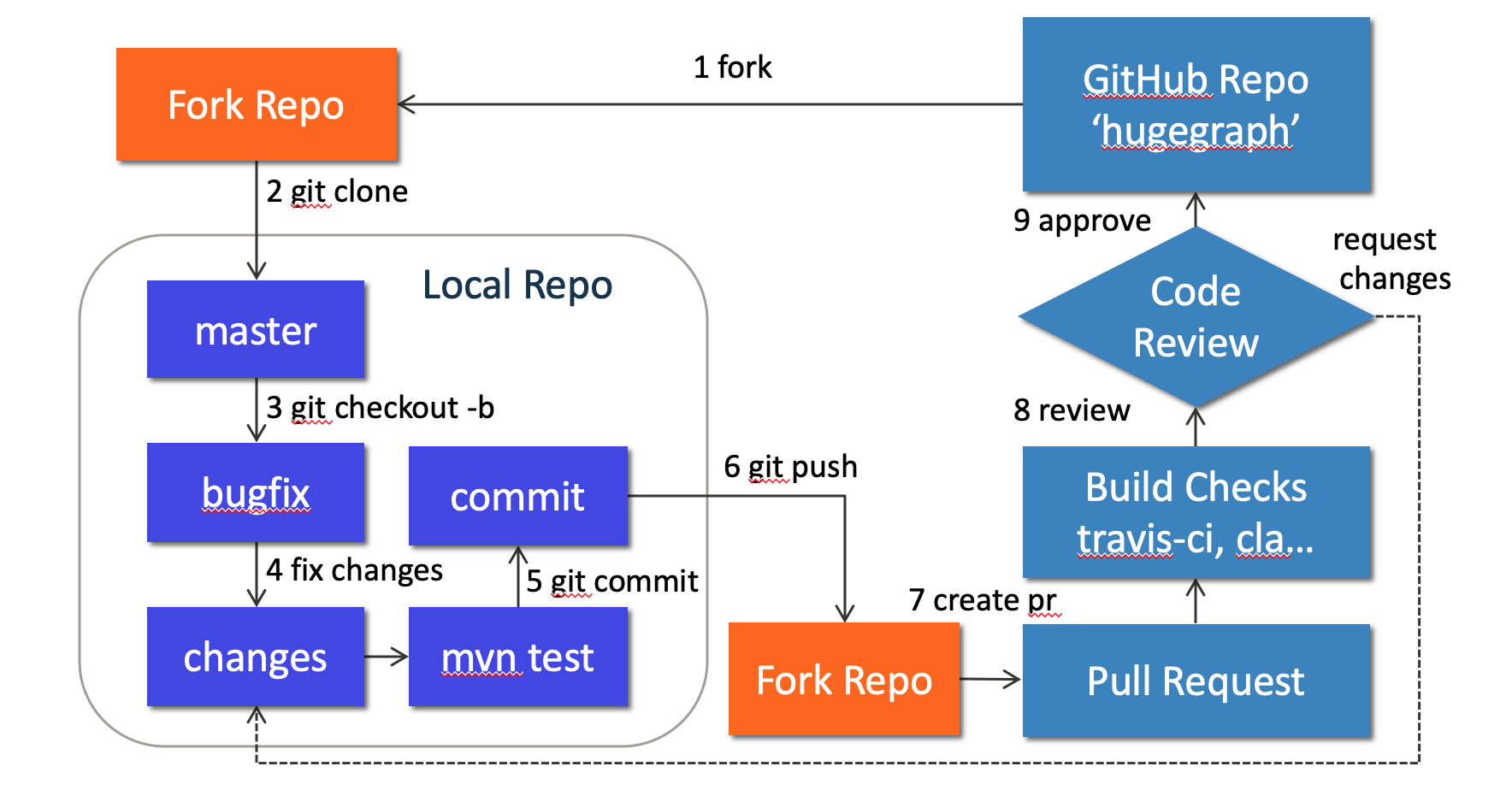
Fork apache/hugegraph on GitHub, then clone your fork:
Do not develop directly on master. Use a separate branch for each change:
Make and Verify Changes
HugeGraph Server code is under hugegraph-server/. For example, the core module is located at:
Current top-level Maven modules are listed below. Server’s hugegraph-server/hugegraph-hstore/ storage adapter is distinct from the standalone hugegraph-store/ storage-node project.
| Path | Submodules |
|---|---|
hugegraph-server/ | hugegraph-core/, hugegraph-api/, hugegraph-example/, hugegraph-dist/, hugegraph-test/, hugegraph-rocksdb/, hugegraph-hbase/, hugegraph-hstore/ |
hugegraph-pd/ | hg-pd-common/, hg-pd-client/, hg-pd-core/, hg-pd-service/, hg-pd-dist/, hg-pd-cli/, hg-pd-grpc/, hg-pd-test/ |
hugegraph-store/ | hg-store-common/, hg-store-client/, hg-store-core/, hg-store-node/, hg-store-dist/, hg-store-cli/, hg-store-grpc/, hg-store-rocksdb/, hg-store-test/ |
hugegraph-commons/ | hugegraph-common/, hugegraph-rpc/ |
hugegraph-cluster-test/ | hugegraph-clustertest-minicluster/, hugegraph-clustertest-dist/, hugegraph-clustertest-test/ |
| Independent root modules | hugegraph-struct/, install-dist/ |
These names come from the root and subproject pom.xml files. Use the structure of the branch you are working on.
For the 1.8.0 shared-foundation changes merged into Server master, see the
shared-foundation ownership and Java migration guide.
Build current Server master with Java 17 and Maven 3.6.3 or later.
CI-friendly versions are flattened during process-resources, so installed and deployed POMs contain concrete versions.
Run the reactor with install before building modules separately, and keep Maven Resolver validation enabled, including with Maven 3.10.
Run the tests directly related to your change first. Common Server test commands include:
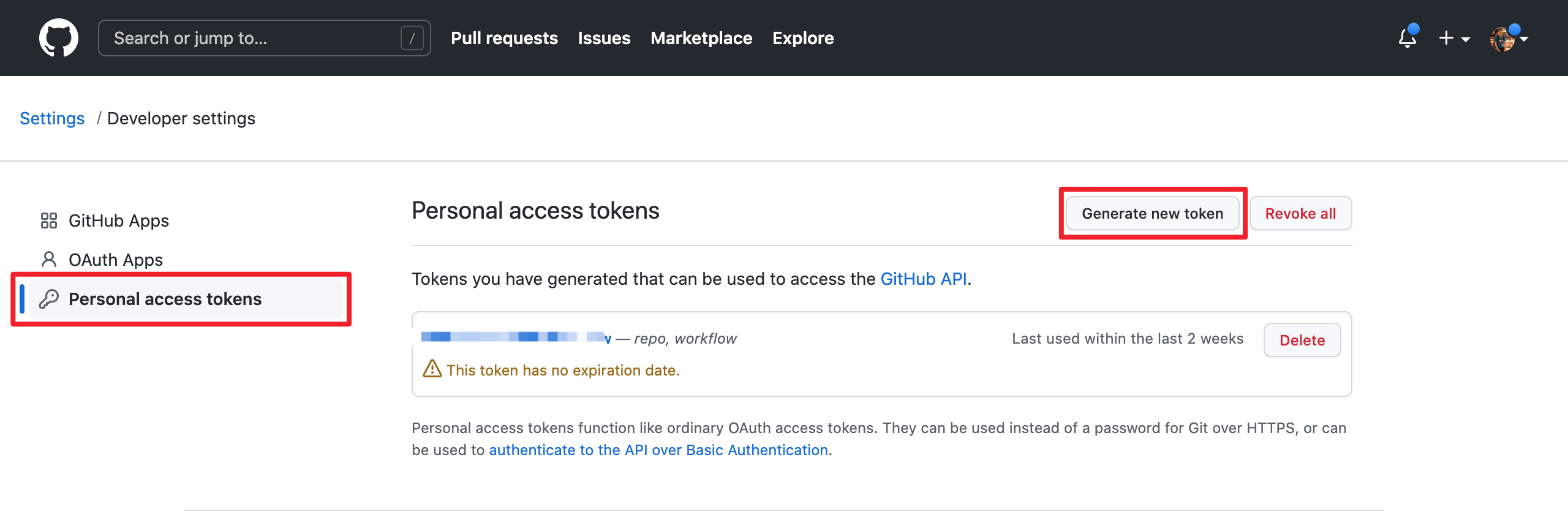
GitHub requires a username and token for Git authentication instead of a username and password. Create a personal access token at https://github.com/settings/tokens:
When adding a third-party dependency, also update the license information included in the distribution:
Add the dependency’s license file to
install-dist/release-docs/licenses/.Update
install-dist/release-docs/LICENSE. If the dependency includes a NOTICE file, updateNOTICEas well.From the repository root, prepare the current revision’s Server, PD and Store distribution libraries before regenerating the inventory:
Clean rebuilds the current revision’s distributions to avoid stale dependency jars. It also removes every
*.tarand*.tar.gzfile directly underhugegraph-server/,hugegraph-pd/andhugegraph-store/, plus the current revision’sapache-hugegraph-<revision>.tar.gzin the repository root; directories of other revisions remain.This build skips tests. Collection combines Maven runtime dependencies with actual flat and nested distribution jars, including Spring Boot
BOOT-INF/libdependencies introduced by repackaging. Missing distributions must fail collection; POM inspection alone does not establish the complete shipped inventory. Review strict additions/removals ininstall-dist/scripts/dependency/known-dependencies.txtand their license/NOTICE coverage, including release platform/profile variants.
Submit a Pull Request
GitHub no longer accepts an account username and password for pushing code. If you need a personal access token, create one with the necessary permissions in token settings.
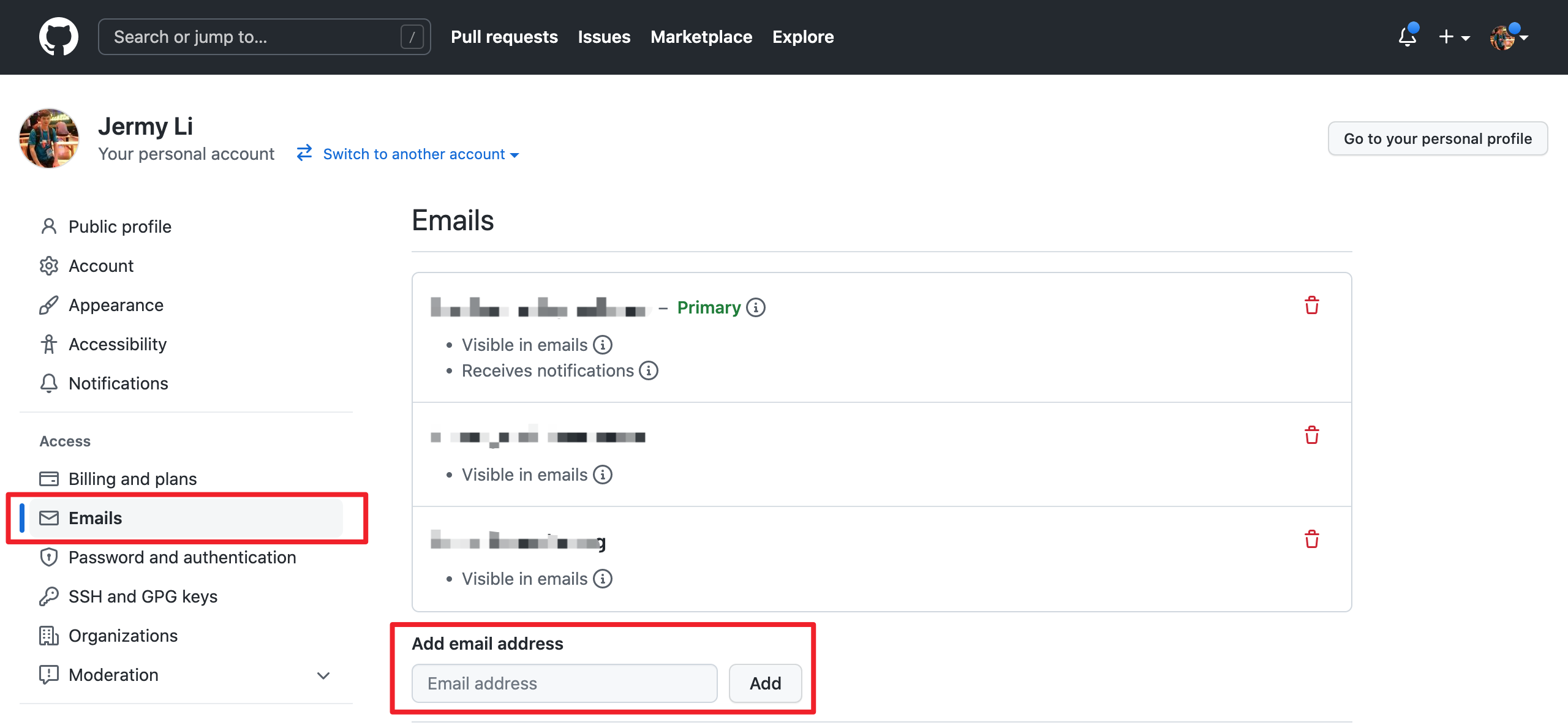
Make sure the email address used for your commits is associated with your GitHub account. Use email settings:
Use the type(module): message format for commit messages, for example:
Then open a pull request from your fork branch to apache/hugegraph:master. Explain the problem, the implementation, and the validation commands you actually ran. Include screenshots for UI changes.
Address Review Feedback
If CI fails or a reviewer requests changes, continue committing and pushing to the same branch. Rebase when you need to synchronize with upstream:
Do not overwrite the remote branch with plain --force. After all CI and review requirements are satisfied, a project maintainer will merge the pull request.
Contributor agreements follow the official ASF process. See the Contributor Agreement.
2 - Subscribe to the Community Mailing List
HugeGraph uses dev@hugegraph.apache.org for development and usage discussions. Subscribe before sending messages to the list; messages from non-subscribers may be rejected.
Subscribe
- From the email address you want to subscribe, send a message with any subject and body to dev-subscribe@hugegraph.apache.org.
- Reply directly to the confirmation message.
- After receiving the subscription confirmation, you can send messages to dev@hugegraph.apache.org.
If the confirmation does not arrive, check your spam folder and automatic mail categories. If it is still missing, wait a while and send the subscription message again.
You can browse public messages in the ASF Mailing List Archives without subscribing.
Unsubscribe
- From your subscribed address, send a message to dev-unsubscribe@hugegraph.apache.org.
- Reply directly to the confirmation message from
dev-help@hugegraph.apache.org. - Unsubscription is complete when you receive a message whose subject contains
GOODBYE.
For general ASF mailing-list guidance, see Apache Mailing Lists.
3 - Validate Apache Release
Note: this doc will be updated continuously. Use Java 17 to build and verify HugeGraph 1.8.0 release packages (the Maven build accepts only JDK 17); use Java 11 for 1.7.0. Since version 1.5.0, components other than the client no longer support Java 8.
Graduation note: Apache HugeGraph graduated in January 2026. Official release voting is now completed within the HugeGraph community (PMC binding votes on
dev@hugegraph.apache.org), and no longer requires Incubatorgeneral@incubator.apache.orgapproval.
Automated release validation
The workflow and dist/validate-release.sh use the same Java 17 checks. Specify the package version and SVN RC path separately,
and use the Maven staging repository from the vote email. The four Server/Toolchain source and binary archives are required.
The same directory may also contain AI and Computer source archives. Every archive must include SHA512 and GPG signatures;
unknown packages and mismatched versions are rejected. All present archives receive integrity, contents and license checks;
Computer sources are also rebuilt with Maven. AI and Computer product runtime validation remains a separate task.
Strict RC validation builds with fresh, separate Maven repositories and does not preinstall a local Server SDK.
It validates both source-built and downloaded binaries through Server, Client, ordinary Loader, Tools and Hubble business assertions.
Logs remain available after failures. The source-prevalidation workflow mode uses exact Server/Toolchain commit SHAs and unsigned archives;
its result does not prove real RC signatures, downloads or remote staging dependency resolution.
Review license-review-*.txt for license choices and exceptions; explicit Category-X-only dependencies block validation.
Automatic success does not approve the release.
The console and GitHub Job Summary show the result, failed phase, review notes and log location. Source prevalidation is clearly separate from RC acceptance.
See the validator instructions for local prevalidation and evidence paths.
Verification
When the internal temporary release and packaging work is completed, other community developers ( especially PMC) need to participate in verification based on ASF release policy and checklist references:
- ASF release policy
- Incubator checklist (historical reference) To ensure the “correctness + completeness” of someone’s published version, here requires **everyone ** to participate as much as possible, and then explain which items you have checked in the subsequent email reply.(The following are the core items)
1. prepare
If there is no svn or gpg or wget environment locally, it is recommended to install it first
(windows recommend using WSL2 environment, or at least git-bash), also make sure to install java
(Java 17 for HugeGraph 1.8.0+, Java 11 for 1.7.0) and maven software (≥ 3.6.3)
2. check hash value
First you need to check the file integrity of the source + binary package, Verify by shasum to
ensure that it is consistent with the hash value published on apache/GitHub (Usually sha512), Here
is the same as the last step of 0x02 inspection.
3. check gpg signature
This is to ensure that the published package is uploaded by a reliable person. Assuming tom signs and uploads, others should download A’s public key and then perform signature confirmation.
Related commands:
Require exit code zero and a VALIDSIG fingerprint matching the vote signer. When a signing subkey is used, compare its reported
primary-key fingerprint. A key-trust warning alone does not invalidate a signature; do not infer success from localized Good signature text.
Stop on REVKEYSIG, EXPKEYSIG or EXPSIG, even alongside VALIDSIG or exit code zero; ask the release manager to review or update the candidate.
See the GnuPG status format.
First confirm the overall integrity/consistency, and then confirm the specific content (key)
4. Check the archive contents
Check the contents of the archive downloaded from preparation work. Divided into two aspects: source code package + binary package, The source code package is stricter, it can be said that the core part (Because it is longer, For a complete list refer to the official Wiki)
A. source package
After decompressing *hugegraph*src.tar.gz, Do the following checks:
- package/folder naming should match the release line (historical releases may still contain
incubating), and no empty files/folders LICENSE+NOTICEexist and the content is normal;DISCLAIMERis required for historical incubating artifacts- does not exist binaries (without LICENSE)
- The source code files all contain the standard
ASF Licenseheader (this could be done with theMaven-MATplugin) - Check whether the
pom.xmlversion number of each parent/child module is consistent (and meet expectations) - Finally, make sure the source code works/compiles correctly
The manual Maven command must use settings pointing to the staging repository from the vote email and a fresh local repository. Do not preinstall local Server SDK artifacts to hide missing staged dependencies. The automated validator configures these settings for you.
B. binary package
After decompressing xxx-hugegraph.tar.gz, perform the following checks:
- package/folder naming should match the release line (historical releases may still contain
incubating) LICENSEandNOTICEfile exists and the content is normal (DISCLAIMERapplies to historical incubating artifacts)- start server
Note: If a third-party dependency is introduced in the binary package, you need to update the LICENSE and add the third-party dependent LICENSE; if the third-party dependent LICENSE is Apache 2.0, and the corresponding project contains NOTICE, you also need to update Our NOTICE file
5. Check the official website and GitHub and other pages
- Make sure that the official website at least meets apache website check, and no circular links, etc.
- Update download link and release notes updated
- …
Mail Template
After the check & test, you should reply to the mail with the following content: (normal devs & PMC)
and the PMC members should reply with binding, it’s important for summary the valid votes:
4 - Setup Server in IDEA (Dev)
Scope: These IDEA instructions are based on the HugeGraph 1.2.0 release tag and retained as historical debugging steps. For current source layout and verification commands, see the contribution process and Server quick start. Do not infer the current module list from this page.
Background
The Quick Start section provides instructions on how to start and stop HugeGraph-Server using scripts. In this guide, we will explain how to run and debug HugeGraph-Server on the Linux platform using IntelliJ IDEA.
The core steps for local startup are the same as starting with scripts:
- Initialize the database backend by executing the
InitStoreclass to initialize the graph. - Start HugeGraph-Server by executing the
HugeGraphServerclass to load the initialized graph information and start the server.
Before proceeding with the following process, make sure that you have cloned the source code of HugeGraph
and have configured the development environment, such as Java 17 for HugeGraph 1.8.0+ (Java 11 for 1.7.0) & you could config your local environment
with this config-doc
Steps
1. Copy Configuration Files
To avoid the impact of configuration file changes on Git tracking, it is recommended to copy the required configuration files to a separate folder. Run the following command to copy the files:
Replace path-to-your-directory with the path to the directory where you want to copy the files. Run the command from the repository root, the hugegraph-dist module lives under the top-level hugegraph-server directory.
The following ToplingDB steps apply only to historical custom builds. Current master contains neither
preload-topling.shnor the ToplingDB module; skip this note when debugging current master.
2. Configure InitStore to initialize the graph
First, you need to configure the database backend in the configuration files. In this example, we will use RocksDB. Open path-to-your-directory/conf/graphs/hugegraph.properties and configure it as follows:
Next, open the Run/Debug Configurations panel in IntelliJ IDEA and create a new Application configuration. Follow these steps for the configuration:
- Select
hugegraph-distas theUse classpath of module. - Set the
Main classtoorg.apache.hugegraph.cmd.InitStore. - Set the program arguments to
conf/rest-server.properties. Note that the path here is relative to the working directory, so make sure to set the working directory topath-to-your-directory. - (Optional, ToplingDB builds only) ToplingDB requires preloading dynamic libraries via the
LD_PRELOADmechanism. Developers need to set two environment variables:LD_LIBRARY_PATHshould point to thelibrarydirectory extracted bypreload-topling.sh, andLD_PRELOADshould be set tolibjemalloc.so:librocksdbjni-linux64.soto ensure the necessary libraries are correctly loaded at runtime.- LD_LIBRARY_PATH=/path/to/your/library:$LD_LIBRARY_PATH
- LD_PRELOAD=libjemalloc.so:librocksdbjni-linux64.so
If user authentication (authenticator) is configured for HugeGraph-Server in the Java 11 environment, you need to refer to the script configuration in the binary package and add the following VM options:
Otherwise, an error will occur:
Once the configuration is completed, run it. If the execution is successful, the following runtime logs will be displayed:
3. Running HugeGraphServer
Similarly, open the Run/Debug Configurations panel in IntelliJ IDEA and create a new Application configuration. Follow these steps for the configuration:
- Select
hugegraph-distas theUse classpath of module. - Set the
Main classtoorg.apache.hugegraph.dist.HugeGraphServer. - Set the program arguments to
conf/gremlin-server.yaml conf/rest-server.properties. Similarly, note that the path here is relative to the working directory, so make sure to set the working directory topath-to-your-directory.
bin/hugegraph-server.shin the binary package does not start this class directly. It startsorg.apache.hugegraph.bootstrap.HugeGraphServerBootstrap, which takes a leadingtrue/falsesecurity-check flag before the two configuration paths, installsHugeSecurityManagerwhen that flag istrue, and then hands over toHugeGraphServer. RunningHugeGraphServerfrom IDEA skips that wrapper, so the security manager is not installed, which is normally what you want while debugging.
Similarly, if user authentication (authenticator) is configured for HugeGraph-Server in the Java 11 environment, you need to refer to the script configuration in the binary package and add the following VM options:
Otherwise, an error will occur:
Once the configuration is completed, run it. If you see the following logs, it means that HugeGraphServer has been successfully started:
4. Debugging HugeGraphServer (optional)
After completing the above configuration, you can try debugging HugeGraphServer. Run HugeGraphServer in debug mode and set a breakpoint at the following location:
Then use the RESTful API to request HugeGraphServer:
At this point, you can view detailed variable information in the debugger.
5. Log4j2 Configuration
By default, when running InitStore and HugeGraphServer, the Log4j2 configuration file path read is hugegraph-server/hugegraph-dist/src/main/resources/log4j2.xml, not path-to-your-directory/conf/log4j2.xml. This configuration file is read when starting HugeGraph-Server using the script.
To avoid maintaining two separate configuration files, you can modify the Log4j2 configuration file path when running and debugging HugeGraph-Server in IntelliJ IDEA:
- Open the previously created
Applicationconfiguration. - Click on
Modify options-Add VM options. - Set the VM options to
-Dlog4j.configurationFile=conf/log4j2.xml.
Possible Issues
1. java: package sun.misc does not exist
The reason may be that cross-compilation is triggered when using Java 11 to compile, causing the symbol of sun.misc.Unsafe used in the project to not be found. There are two possible solutions:
- In IntelliJ IDEA, go to
Preferences/Settingsand find theJava Compilerpanel. Then, disable the--releaseoption (recommended). - Set the Project SDK to 8 (Deprecated soon).
2. java: *.store.raft.rpc.RaftRequests does not exist (RPC Generated Files)
The reason is that the source code didn’t include the RPC-generated files. You could try 2 ways to fix it:
- [CMD]
mvn clean compilein the root directory (Recommend) - [UI] right click on the
hugegraphrepo and selectMaven->Generate Sources and Update Folders. This will rebuild the repo and correctly generate the required files.
3. Unable to Print Location Information (%l) in Log4j2
This is because Log4j2 uses asynchronous loggers. You can refer to the official documentation for configuration details.
References
5 - Apache HugeGraph Committer Guide
This document outlines the requirements and process for becoming an Apache Committer. The corresponding ASF official document can be found at: https://community.apache.org/newcommitter.html
Candidate Requirements
- Candidates must adhere to the Apache Code of Conduct.
- PMC members will assess candidates’ interactions with others and contributions through mailing lists, issues, pull requests, and official documentation.
- Considerations for evaluating candidates as potential Committers include:
- Ability to collaborate with community members
- Mentorship capabilities
- Community involvement
- Level of contribution
- Personal skills/abilities
Nomination Process
Discussion → Vote → Invitation → Announcement
Initiate Community Discussion (DISCUSS)
Any PMC member of HugeGraph can initiate a voting discussion. After identifying valuable contributions from a community contributor and obtaining the candidate’s consent, a discussion can be initiated via private@hugegraph.apache.org. The initiator of the discussion should clearly state the candidate’s contributions in the discussion email and provide URLs or other information for confirming the contributions, facilitating discussion and analysis.
Below is a template for HugeGraph emails: (For reference only)
Note: The term
xxxwill be used to refer to the candidate. Typically,xxxrepresents an easily readable name (e.g.,Simon Jay).ASF-INFRA recommends avoiding the use of less readable
IDdirectly as a reference to the person in emails (e.g., avoidsimon321orwh0isSim0n😄).In addition, it is best to choose the “pure text” mode, otherwise the typesetting may be chaotic in the ASF Mailing-list UI
For contribution links in discussion emails, you can use the statistical feature of GitHub Search by entering corresponding keywords as needed. You can also adjust parameters and add new repositories such as repo:apache/hugegraph-computer. Pay special attention to adjusting the time range (below is a template reference, please adjust the parameters accordingly):
- Number of PR submissions
is:pr author:xxx repo:apache/hugegraph repo:apache/hugegraph-doc created:>2023-06-01 updated:<2023-12-25
- Lines of code submissions/changes
- Number of PR submissions associated with issues
linked:issue involves:xxx repo:apache/hugegraph repo:apache/hugegraph-doc created:>2023-06-01 updated:<2023-12-25
- Number of PR reviews
type:pr reviewed-by:xxx repo:apache/hugegraph repo:apache/hugegraph-doc created:>2023-06-01 updated:<2023-12-25
- Number of merge commits
type:pr author:xxx repo:apache/hugegraph repo:apache/hugegraph-doc created:>2023-06-01 updated:<2023-12-25
- Effective lines merged
- Number of issue submissions
type:issue author:xxx repo:apache/hugegraph repo:apache/hugegraph-doc created:>2023-06-01 updated:<2023-12-25
- Number of issue fixes
- Based on the number of issue submissions, select those with a closed status.
- Number of issue participations
type:issue involves:xxx repo:apache/hugegraph repo:apache/hugegraph-doc created:>2023-06-01 updated:<2023-12-25
- Number of issue comments
type:issue commenter:xxx repo:apache/hugegraph repo:apache/hugegraph-doc created:>2023-06-01 updated:<2023-12-25
- Number of PR comments
type:pr commenter:xxx repo:apache/hugegraph repo:apache/hugegraph-doc created:>2023-06-01 updated:<2023-12-25
For participation in mailing lists, you can use https://lists.apache.org/list?dev@hugegraph.apache.org:lte=10M:xxx.
Initiate Community Voting Email (VOTE)
If there are no dissenting opinions within the specified time frame of the discussion email, the initiator of the discussion needs to initiate a voting email for the committer election at private@hugegraph.apache.org.
Below is the corresponding email template:
Then, PMC members reply to the email with +1 or -1 to express their opinions. Generally, at least 3 votes of +1 are needed to conclude the vote.
Announcement of Voting Results (RESULT)
After the voting email concludes, the initiator of the vote needs to remind the end of the voting in the email. Additionally, the initiator needs to announce the voting results via email to private@hugegraph.apache.org. The email template can be as follows:
Send Invitation Email to Candidate (INVITE)
After the announcement of the voting results email is sent, the initiator of the vote should send an invitation email to the candidate. The invitation email is addressed to the candidate and cc’d to private@hugegraph.apache.org. The invited candidate must reply to the specified email address to accept or reject the invitation.
Below is a template for reference:
Candidate Accepts Invitation (ACCEPT)
The candidate should reply to the aforementioned email (select reply all) to indicate acceptance of the invitation. Below is a template for the email:
Of course, the candidate may also choose to decline the invitation, in which case there is no template:)
Once the invitation is accepted, the candidate needs to complete the following tasks:
- Subscribe to dev@hugegraph.apache.org, for specific steps/filtering configurations, please refer to the documentation
- Sign the ICLA, follow the steps below↓
ICLA Signing Process
- Download the ICLA
- Open the PDF and fill in the required information. All fields must be filled in English. It is recommended to use a PDF tool to edit and sign.
- Full name: First name followed by last name
- Public name: Optional, defaults to the same as
Full name - Check the box only if you entered names with your family name first
- Postal Address: English address, starting from small to large, including detailed street address
- Country: Country of residence in English
- E-mail: Email address, preferably the same as the one used in the invitation email
- (optional) preferred Apache id(s): Choose an SVN ID that is not listed on the Apache committer page
- (optional) notify project: Apache HugeGraph
- Signature: Must be handwritten using a PDF tool
- Date: Format as xxxx-xx-xx
- After signing, rename
icla.pdftoname-pinyin-icla.pdf - Send the following email and attach
name-pinyin-icla.pdfas a reference.
For more details, please refer to https://github.com/apache/hugegraph/issues/1732.
PMC members will await confirmation of the ICLA record from the Apache secretary team. Candidates and PMC members will receive the following email:
Setting Up Apache Account and Development Environment (CONFIG)
After the record is completed, the candidate will receive an email from root@apache.org with the subject Welcome to the Apache Software Foundation. At this point, the candidate needs to follow the steps in the email to set up the Apache account and development environment:
- Reset the password at https://id.apache.org/reset/enter.
- Configure personal information at https://whimsy.apache.org/roster/committer/xxx.
- Associate GitHub account at https://gitbox.apache.org/boxer.
- This step requires configuring GitHub Two-Factor Authentication (2FA).
- The nominating PMC member must add the new Committer to the official list of committers via the Roster page. (Important, otherwise repository permissions will not take effect).
- After this step, the candidate becomes a new Committer and gains write access to the GitHub HugeGraph repository.
- (Optional) The new Committer can apply for free use of JetBrains’ full range of products with their Apache account here.
Announcing via Email (ANNOUNCE)
After the candidate completes the above steps, they will officially become a Committer of HugeGraph. At this point, they need to send an announcement email to dev@hugegraph.apache.org. Below is a template for the email:
Update Governance Information
Since Apache HugeGraph graduated in January 2026, governance information is maintained in ASF committee/project data rather than Incubator clutch pages.
Please check:
If an update is required but does not appear automatically, coordinate with Apache Community Development or ASF Infra according to the official process.
References
- https://community.apache.org/newcommitter.html (ASF official documentation)
- https://infra.apache.org/new-committers-guide.html
- https://www.apache.org/dev/pmc.html#newcommitter
- https://linkis.apache.org/zh-CN/community/how-to-vote-a-committer-pmc
- https://www.apache.org/licenses/contributor-agreements.html#submitting
- https://www.apache.org/licenses/cla-faq.html#printer
- https://linkis.apache.org/zh-CN/community/how-to-sign-apache-icla
- https://github.com/apache/hugegraph/issues/1732 (HugeGraph ICLA related issue)