HugeGraph-LLM Workflow
Follow the Web UI to build indexes, query documents, and generate Gremlin. See HugeGraph-LLM for startup instructions.
Prepare a reachable HugeGraph Server, a generation model, and an embedding model. Viewing settings or running handwritten Gremlin in
Graph Tools needs no model. Document vectors require embeddings; graph extraction and answers also require an LLM.
The reranker is optional. Start with the local bleu method.
| Task | UI tab | Prerequisites |
|---|---|---|
| Build indexes from documents | 1. Build RAG Index | Documents and embeddings; graph extraction also needs a schema and LLM |
| Answer from documents or a graph | 2. (Graph)RAG & User Functions | The corresponding indexes and an LLM |
| Convert a question to Gremlin | 3. Text2gremlin | Graph schema and LLM; examples also need embeddings and an example index |
| Check graph data directly | 4. Graph Tools | A HugeGraph connection and handwritten Gremlin |
The screenshots show the HugeGraph-LLM Web UI. The built-in prompt language can be toggled via LANGUAGE in .env, while UI controls remain in English.
Missing batch-question template when starting from source
If startup raises FileNotFoundError for questions_template.xlsx, create the input template from the repository root after installing dependencies,
then restart. This preserves an existing file. The template has all 6 columns, with a test question and expected answer; the 4 model-answer columns stay empty.
0. Configuration Panel
Above the tabs sits a collapsible configuration panel with five sections: 1. Set up the HugeGraph server., 2. Set up the LLM., 3. Set up the Embedding., 4. Set up the Reranker., and 5. Set up the vector engine.. Each section has its own apply button, and applying a change writes the supported fields back to .env. The header also shows the current prompt language.
Set the answer, extraction, and query-generation models in the chat, mini_tasks, and text2gql sub-tabs of the LLM settings.
The screenshots use local Ollama models qwen2.5:3b and mxbai-embed-large, with Faiss as the vector engine.
Rebuild indexes after changing embedding models, since vector dimensions or meaning can differ.
1. Build RAG Indexes
The first tab splits documents into a chunk vector index. It also extracts vertices and edges according to a schema, writes them to HugeGraph, and maintains a vertex vector index.
flowchart TD
    A[Input document] --> B[Split text]
    B --> C[Generate chunk vectors]
    C --> D[Write vector index]
    B --> E[LLM extracts vertices and edges from schema]
    E --> F[Write to HugeGraph]
F --> G[Update vertex vector index]Input comes from either the text sub-tab or the file sub-tab. Uploads accept .txt, .docx, and .pdf, and several files can be selected at once.
For a first run, paste this short document into Input Doc(s). Select a dedicated test graph before importing it.
Paste this JSON into Graph Schema and keep the default extraction prompt.
It allows people and roommate relationships, with optional age and occupation.
Follow these steps to build the indexes. For vector-only retrieval, stop after step 1.
- Click
Import into Vectorto split the document and build the chunk vector index. - Enter schema JSON or an existing graph name in
Graph Schema, then clickExtract Graph Data (1). Check the vertices, edges, and properties inOutput Info. - Click
Load into GraphDB (2)after checking the extraction. This writes to HugeGraph and refreshes vertex embeddings. - Open
Graph Tools. Rung.V().count()andg.E().count(), then query the properties to confirm that the data was written.
This example should produce 2 vertices and 1 edge, with Sarah’s age set to 30 and occupation to attorney.
If the graph already contains data, use Update Vid Embedding to refresh its vertex index separately.
The Graph Extraction Split Type dropdown selects document, paragraph, or sentence.
document uses the whole input; the other options split it before extraction.
The page can also inspect or clear chunk indexes, vertex indexes, and graph data. Clearing removes existing data, so first confirm that the current graph and indexes are not still used by other queries.
Two collapsed helpers sit below the main controls:
Graph Schema Generatortakes query examples and a few-shot example and produces a schema for the Graph Schema field.Graph Extraction Prompt Generatortakes an expected scenario, such as social relationships or a financial knowledge graph, and a selected reference example, and produces a Graph Extract Prompt Header.
2. GraphRAG Queries
The second tab offers four answer modes. Choose the indexes needed for your question.
| Control | Answer source |
|---|---|
Basic LLM Answer | The LLM alone, without document or graph retrieval |
Vector-only Answer | Retrieved document chunks |
Graph-only Answer | Retrieved graph data |
Graph-Vector Answer | Retrieved graph data and document chunks |
Using Graph-Vector Answer is recommended, as it combines graph traversal and
vector search for more comprehensive fact retrieval. Other scopes are summarized in the table above.
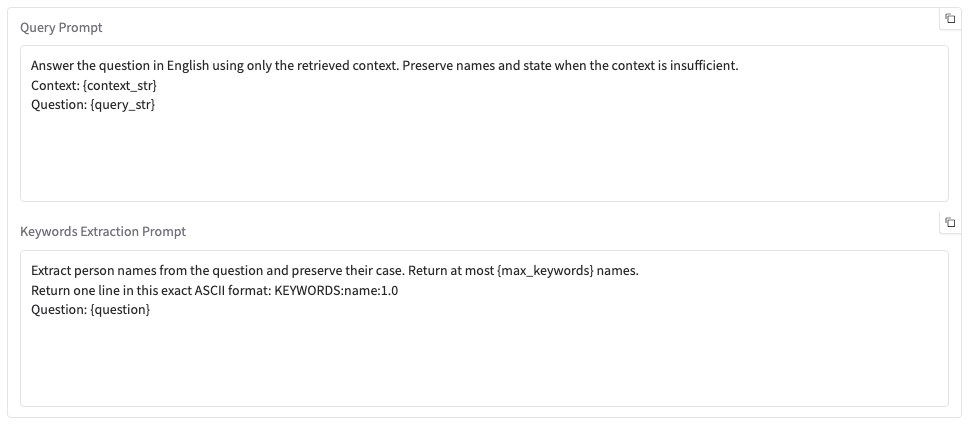
The screenshots use these short prompts. Paste them into Query Prompt and Keywords Extraction Prompt, respectively.
The service fills the placeholders. Keep the KEYWORDS: prefix and ASCII colons in keyword output, and preserve name capitalization.
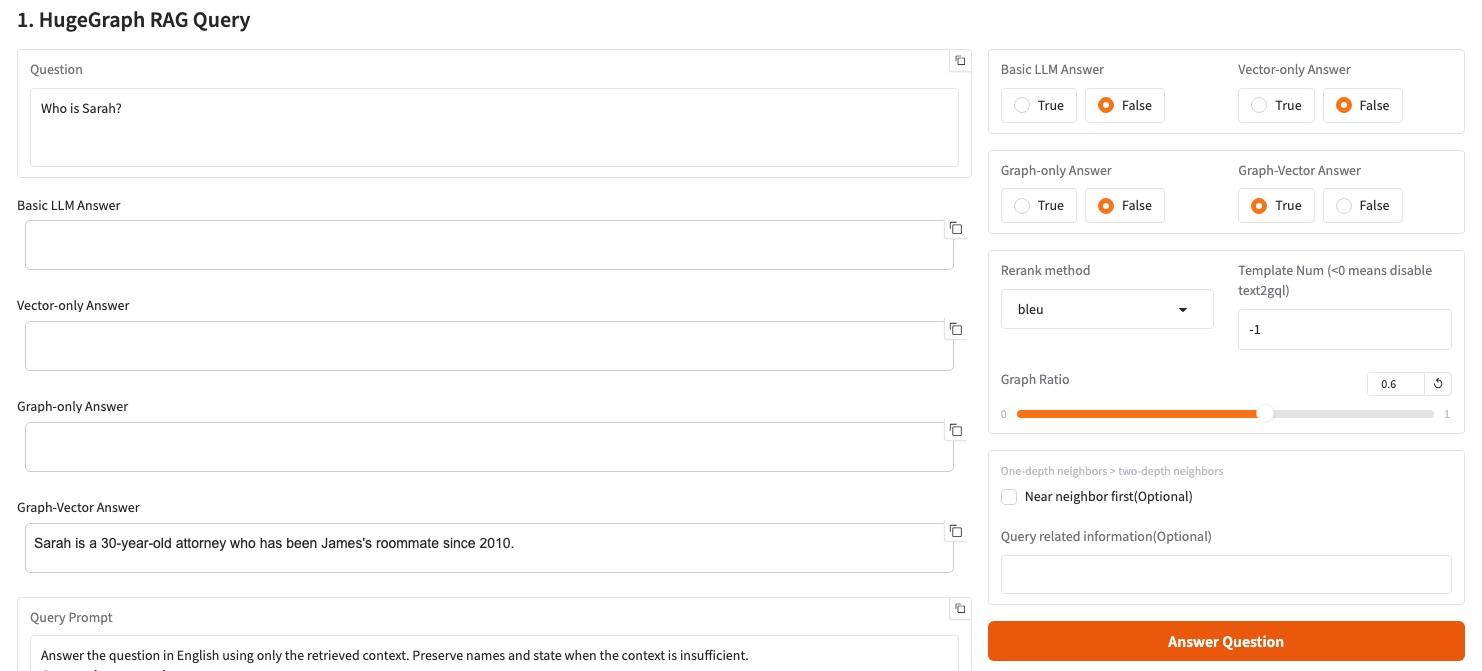
- Enter
Who is Sarah?, setGraph-only AnswertoFalse, and setGraph-Vector AnswertoTrue. - Keep
Template Num=-1andRerank method=bleufor the first check, then clickAnswer Question. - Read
Graph-Vector Answerand compare facts such as age and occupation with the source document and graph.
flowchart TD
    Q[Question] --> V[Query chunk vector index]
    Q --> K[Extract keywords]
    K --> M[Match graph vertices]
    M --> D{Text2Gremlin enabled}
    D -->|Yes| T[Generate and execute Gremlin]
    D -->|No| B[BFS graph traversal]
    T -->|Failure| B
    T --> R[Prepare graph results]
    B --> R
    V --> S[Merge and rerank]
    R --> S
S --> A[Generate answer]Graph retrieval first matches HugeGraph vertices exactly by keyword and then uses vector similarity if no exact match exists. The matched vertices are passed to Text2Gremlin. If generation or execution fails, the pipeline can fall back to a predefined traversal.
Template Num controls how Text2Gremlin participates in graph retrieval:
- A negative value skips Text2Gremlin entirely, so graph retrieval goes straight to the predefined traversal.
0uses baseline generation without retrieving examples.- A positive value retrieves that many similar examples from the example index and uses the template-guided result. The example count is clamped to the range 0 to 10.
Other controls on this tab are Rerank method (bleu or reranker), Graph Ratio, Near neighbor first, and Query related information, plus editable Query Prompt and Keywords Extraction Prompt fields.
Below the single-question panel is a batch back-testing panel. Upload an .xlsx or .csv file of questions, set Max Lines To Show, and click Generate Answer (Batch). The answers appear in a preview table and can be downloaded as a file. A template file is offered next to the upload control.
3. Text2Gremlin
The third tab converts natural language into Gremlin and executes the generated queries.
The upper panel builds an example vector index from question and Gremlin pairs in .json or .csv files.
When no file is uploaded, it uses resources/demo/text2gremlin.csv. Match example labels and properties to the current graph.
If building the example index does not automatically retrieve similar templates, you can provide few-shot examples directly in the Prompt template below.
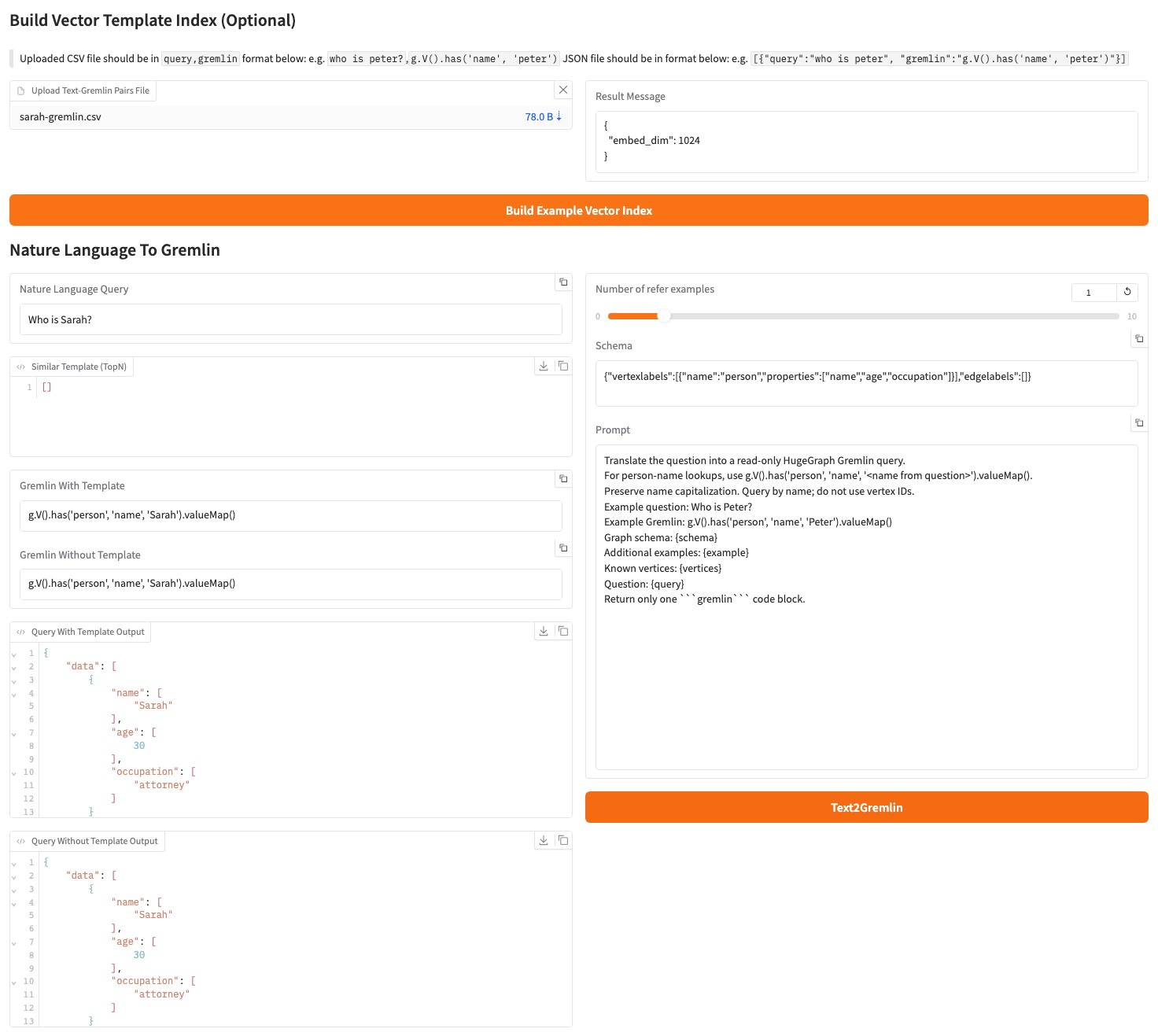
Use these inputs to reproduce the Sarah query.
- Save the CSV below as
sarah-gremlin.csv, upload it, and clickBuild Example Vector Index. SetNumber of refer examplesto1. - Paste the simplified schema below into
Schema. It contains only the labels and properties needed for this query. - Paste the prompt below into
Prompt, enterWho is Sarah?, then clickText2Gremlin. - Check both generated queries and their
Query ... Outputfields. This example returns Sarah withage=30andoccupation=attorney.
A small model can generate incorrect IDs, change name capitalization, or use filters that do not meet the graph’s index requirements. Check the returned data before treating a query as successful. The Web UI executes generated queries directly, so use a dedicated test graph. To generate a query without executing it, select the corresponding output types in the REST API.
A custom prompt must retain {query}, {schema}, {example}, and {vertices}. The REST API rejects it if any placeholder is missing.
4. Graph and Administration Tools
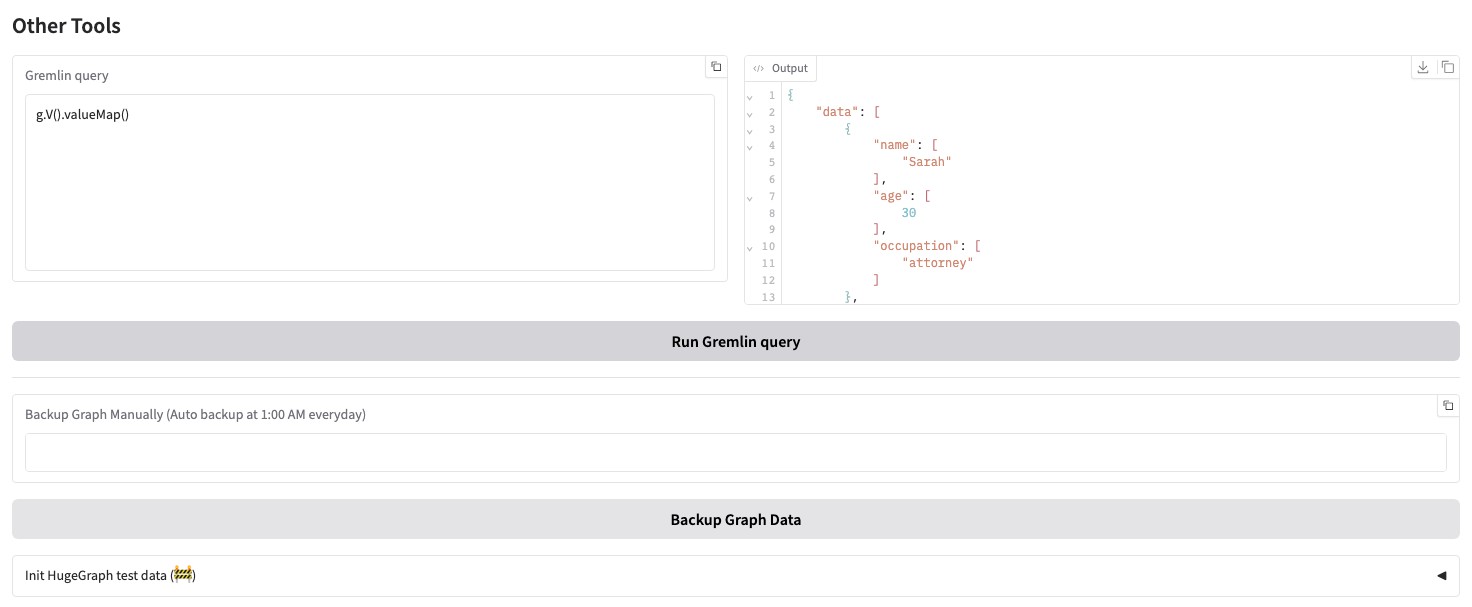
Graph Tools runs a Gremlin query directly against the configured graph, triggers a manual graph backup, and can initialize demo data in HugeGraph through a beta action. A background job also backs up the graph every day at 01:00, and a second background task keeps vertex-id embeddings up to date while the process runs.
Initializing demo data first clears the current graph. Use this action only on a dedicated test graph.
Admin Tools is password protected. Entering the configured ADMIN_TOKEN reveals the tail of logs/llm-server.log, which refreshes every 60 seconds, along with buttons to refresh or clear it. Access is refused while ADMIN_TOKEN is empty or still set to the placeholder xxxx.
When ENABLE_LOGIN=True, the Web UI asks for basic credentials with the fixed user name rag and USER_TOKEN as the password, and the REST API requires USER_TOKEN as a Bearer token. The log endpoint additionally requires a separately configured, secure ADMIN_TOKEN.
In production, enable HugeGraph-LLM login, replace USER_TOKEN and ADMIN_TOKEN, and enforce a source IP allowlist at the firewall or network entry point. Separately enable Server authentication and authorization, retain Server audit logs (normally audit-*.log), and grant GRAPH_USER minimum required permissions. AI service tokens do not replace Server authentication.
5. Prompt Language
Set LANGUAGE=EN or LANGUAGE=CN in hugegraph-llm/.env, then restart the service. This selects the language of built-in prompts; it does not translate input documents and is not a field in the /rag request body.
6. REST Calls
The Web UI and REST API use the same pipeline. For application integration, use /rag, /rag/graph, /graph/extract, and /text2gremlin; see the REST API for request formats.