Graph Visualization with Hubble: Standalone Quick Start
Hubble is the HugeGraph Web management and graph visualization interface. Use a single workspace to manage schema, import data, run queries, and switch smoothly between graph, table, and JSON results. This guide uses standalone RocksDB Server + Hubble, without requiring PD or Store.
For use with an HStore distributed cluster, read the foundational operations here first, then consult the
distributed supplement.
This guide aligns with the Toolchain and Server master branches (currently based on 1.8, unreleased). Docker latest is a moving tag; use released versions for production deployments.
The screenshots show the HugeGraph Hubble interface in action; features and workflows are identical in both English and Chinese.
Do not expose unauthenticated Hubble or Server instances directly to the public internet. In production, use HTTPS, container isolation, authentication and authorization, and network allowlists.
Jump directly to a task below. If this is your first visit, start with the standalone deployment:
Start the two services and load the People & Software Demo Graph.
Run Gremlin and inspect graph, table, or JSON results.
Prepare CSV, map fields, and verify the imported records.
Start the standalone pair
Use the main repository’s docker/docker-compose.yml instead of writing custom Compose files. It already integrates RocksDB Server and Hubble with networking, health checks, and data volumes; see the adjacent README for deployment details.
Prepare the official Compose configuration.
If you already have the repository locally, navigate directly to its
docker/directory. Compose automatically mountsconf/hubble/standalone.properties, which pre-configurespd.enabled=falseandserver.direct_url=http://server:8080. Because both services communicate over a shared Docker network, you do not need to configure Server endpoints per graph. Start Compose directly fromdocker/so relative file paths resolve correctly.Hubble publishes on host loopback port
8088by default (controlled byHUBBLE_PUBLISH_HOST, defaulting to127.0.0.1), whereas Server publishes8080across all interfaces. For a local trial, set Server’sportsin Compose to127.0.0.1:8080:8080to prevent exposing unauthenticated ports beyond loopback (setHUBBLE_PUBLISH_HOST=0.0.0.0if remote access to Hubble is required).Start and check the services.
Choose an unused project name for this trial and keep these variables in the same terminal session:
Open Hubble.
Once services are healthy, open http://127.0.0.1:8088. When
HUGEGRAPH_ADMIN_PASSWORDis unset in.env, Server permits anonymous access and Hubble opens the homepage directly. If authentication is enabled, configure an admin password and JWT secret in.envas described in the Docker README, then sign in with a Server account (Hubble has no independent user database). Profile and account management options appear only when authentication is enabled and the account holds requisite permissions.
Use latest to explore recent features; pin a released image version or digest for production. Official release archives are on the
download page.
Verify the deployed versions
Screenshots help locate controls. Verify actual versions from the deployed image digests and build information.
Compose’s server-data and hubble-data retain graph data and Hubble metadata respectively. For further persistence and production settings,
see the Server deployment guide.
Home: find the right starting point
Home groups the workspace into graph overview, data preparation, and graph queries. Use it to understand the workflow,
then return to any section through the sidebar. The top graph selector determines the target of queries, schema operations, and async tasks;
check the current graph after changing pages. Standalone mode has only the DEFAULT GraphSpace and needs no PD configuration.
| Section | Purpose |
|---|---|
| Graph Overview and details | Select a graph, load samples, inspect its size, then model or query it |
| Schema configuration | Define properties, vertex/edge labels, and indexes |
| GQL Traversal | Write queries and explore graph, table, and JSON results |
| Built-in Algorithms | Explore neighbors, paths, and similarity with parameter forms |
| Async Tasks | Track background queries, schema changes, and index operations |
| Data Source Management | Upload files or configure external readers |
| Data Import | Map source fields to the graph model and run or schedule ingestion |
| Profile and Account Management | Update personal details/passwords and manage accounts or space members according to permissions |
| Operations | Inspect Server nodes; PD mode also includes cluster overview and PD/Store nodes |
Interface at a glance
Compare the graph overview, schema, and query workspaces below. Click a screenshot to view the original.
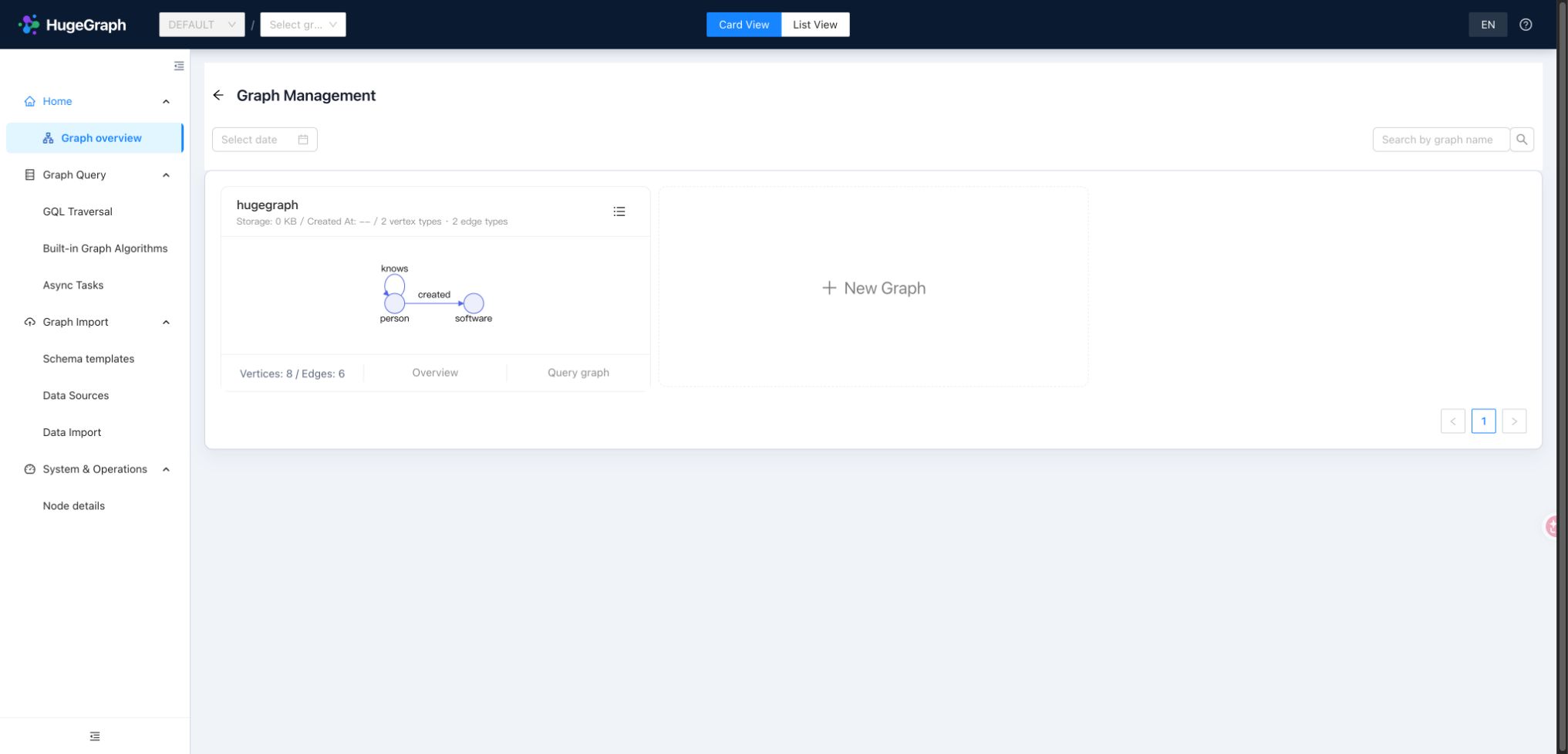
Graph overview: select a graph and inspect sample data
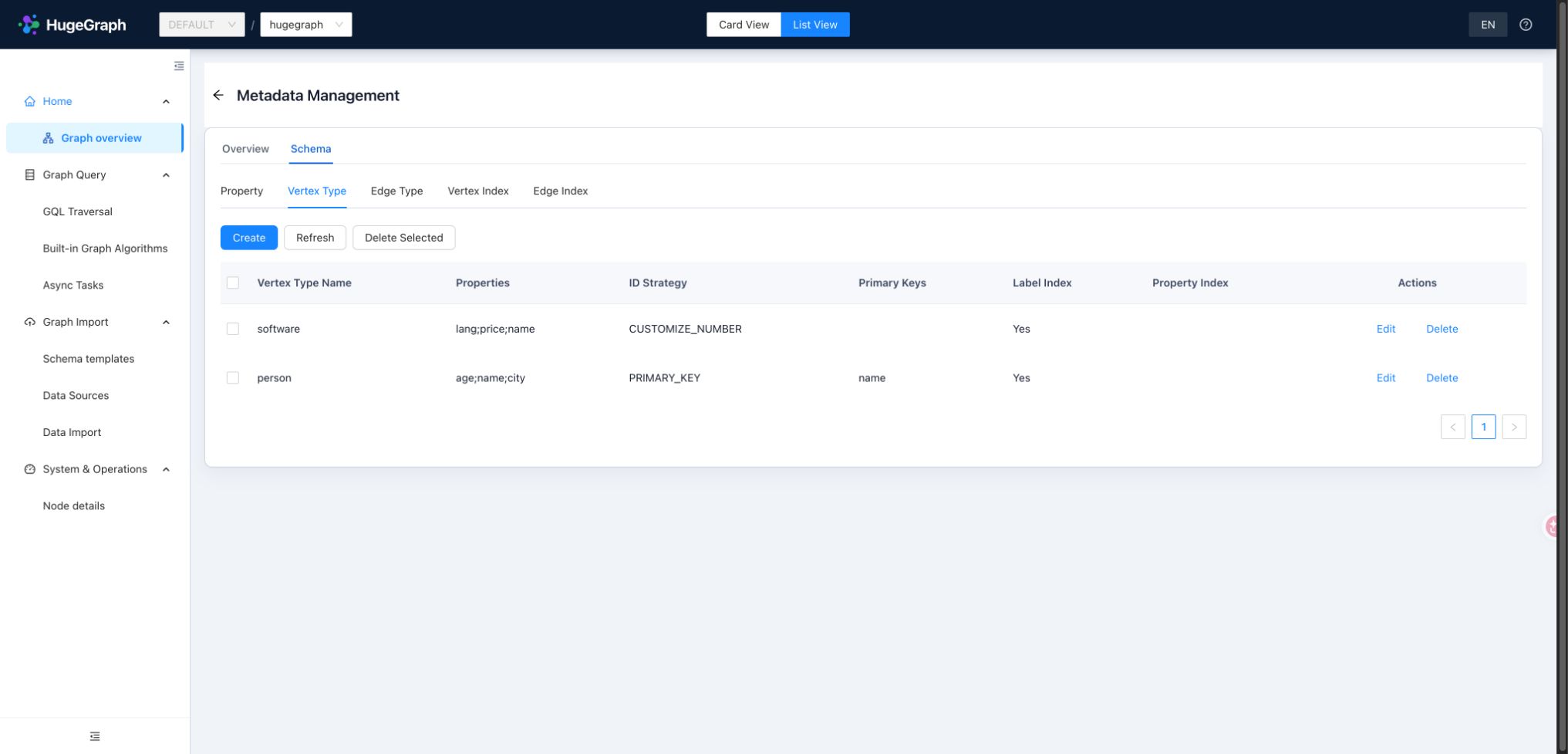
Schema: inspect vertex labels, primary keys, and ID strategies
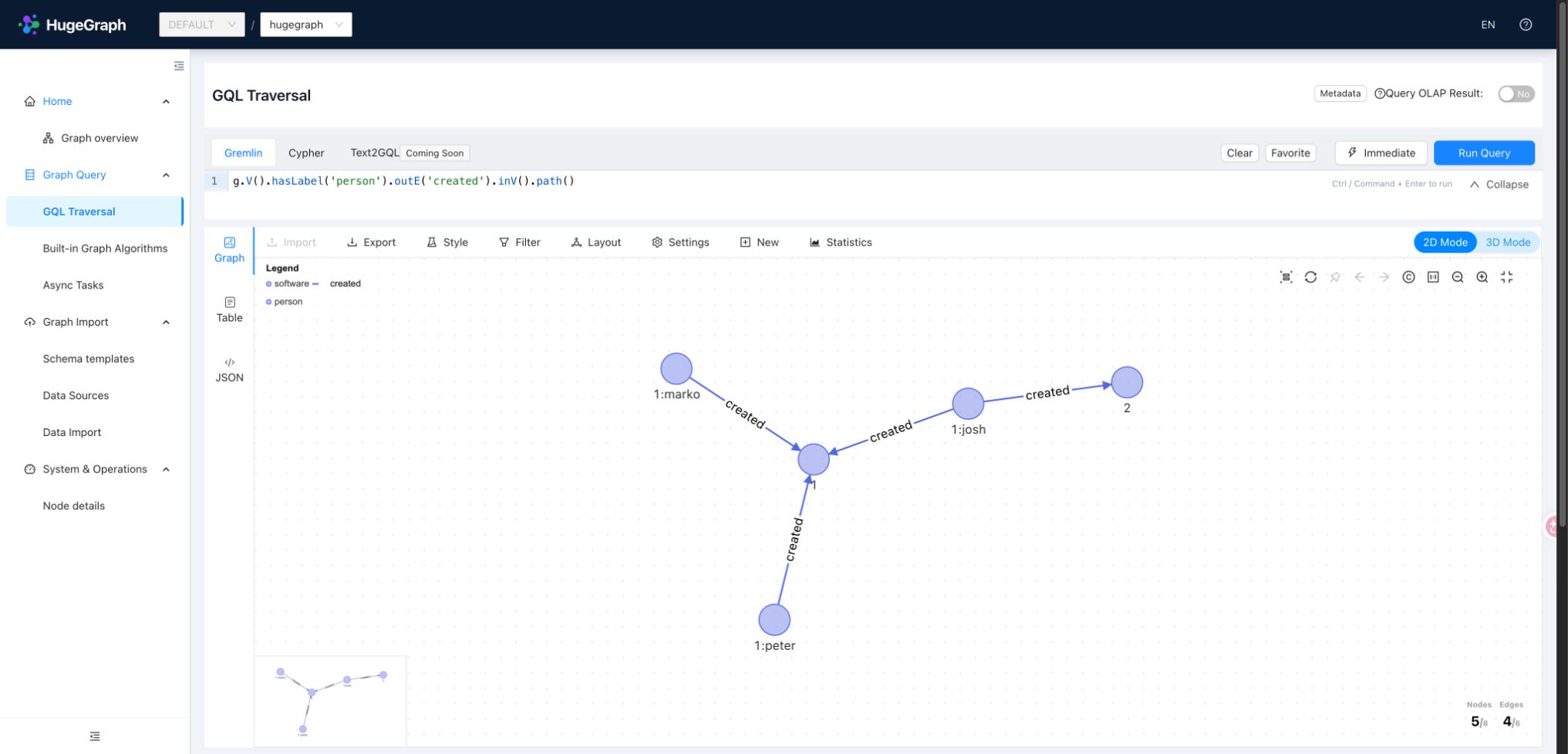
Graph query: run Gremlin and explore graph results
Graph Overview and details: get to know a graph
Select the default graph hugegraph in Graph Overview. Click the graph card or details to view its schema structure and data statistics,
or quickly jump to modeling, data import, or query pages.
Load the People & Software Demo Graph from the graph card’s More actions menu. The sample automatically provisions the required schema and imports sample records without clearing existing data. For your initial trial, load it into an empty graph to avoid name collisions. The remaining examples use this graph to explore connections between people and software.
To create a new graph, click the create button on the overview page and provide a graph name, optional alias, and schema template or sample data. Connection details are managed globally by the Hubble backend, so you do not re-enter Server host or credentials per graph. User-defined schema templates require PD mode; see the distributed supplement.
Schema modeling: define the shape of your data
Schema defines allowable properties, vertex labels, and edge labels, while determining vertex ID strategies and query index rules. Under Schema configuration, use the list view to manage definitions or the graph view to inspect vertex-edge topology visually.
| Definition | What to decide |
|---|---|
| Properties | Data type and cardinality; distinguish numbers from text |
| Vertex labels | Properties, nullable properties, ID strategy, and primary keys |
| Edge labels | Source/target labels, properties, frequency, and sort keys |
| Vertex / edge indexes | Index type and fields that match filtering and range queries |
In the person/software sample: person derives its ID from the primary key name, with nullable age and city;
software uses custom numeric IDs; the created edge label links people to software. This matches the
Loader example.
When modeling your own graph, create elements in order: Properties → Vertex labels → Edge labels → Indexes. Deleting labels or creating/rebuilding indexes typically submits background asynchronous tasks; verify their completion in Async Tasks.
GQL workspace: query and explore relationships
Open GQL Traversal and confirm hugegraph is selected. The workspace puts the query editor and graph display together,
with immediate or async execution, query favorites, and reusable execution history. Start with this Gremlin query:
Inspect person properties in table or JSON view. To visualize the people-to-software relationships, run:
Graph results support 2D / 3D. Click a vertex or edge to inspect its ID, label, and properties; double-click a vertex to expand its neighbors. Layout, styling, and filtering help highlight relevant relationships, while export helps share results. Use New to create elements, or edit existing data when authorized. Layout adjustments, styling, and display bounds only affect the local canvas; adding or editing elements via the UI or executing Gremlin write statements modifies underlying Server graph data.
Press Ctrl / Command + Enter to execute queries quickly. Immediate execution is ideal for interactive exploration; submit long or resource-intensive
queries as background async tasks. Cypher is available when supported by the backend Server.
The keyboard shortcut acts on whichever input currently has focus: generating a query from
the natural language prompt, or running statements in the code editor.
Text2GQL natural-language queries
Describe your query requirement in the Natural language input. Text2GQL combines the current graph schema to generate read-only Gremlin or Cypher and execute it automatically. Generated statements can be edited freely (read-only safety checks still apply before execution). In Async mode, both generated and handwritten queries can be submitted as background tasks. Inputs automatically restore the graph’s most recent query prompt without running it, and the execution history retains original natural-language questions.
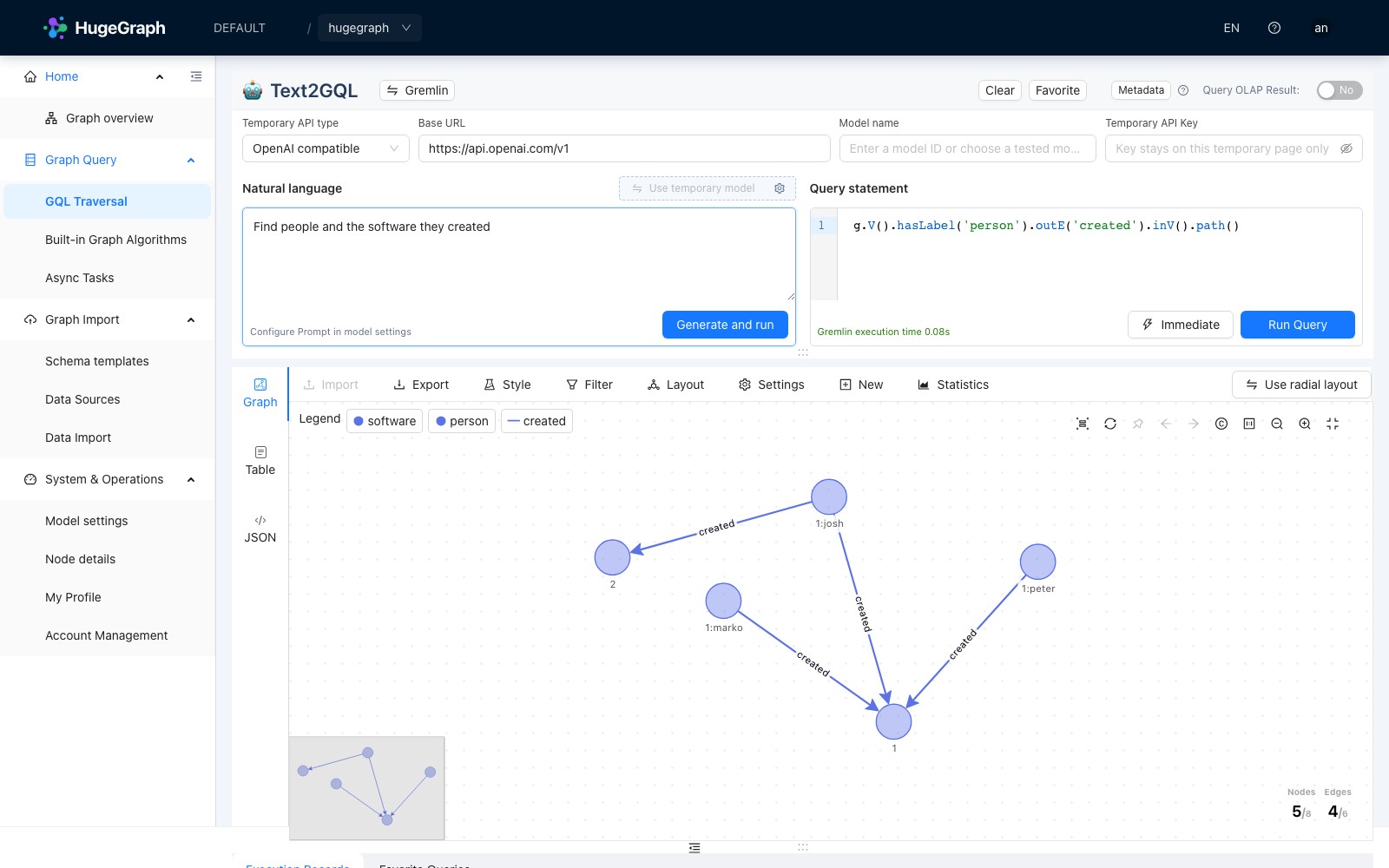
Unconfigured model; handwritten query
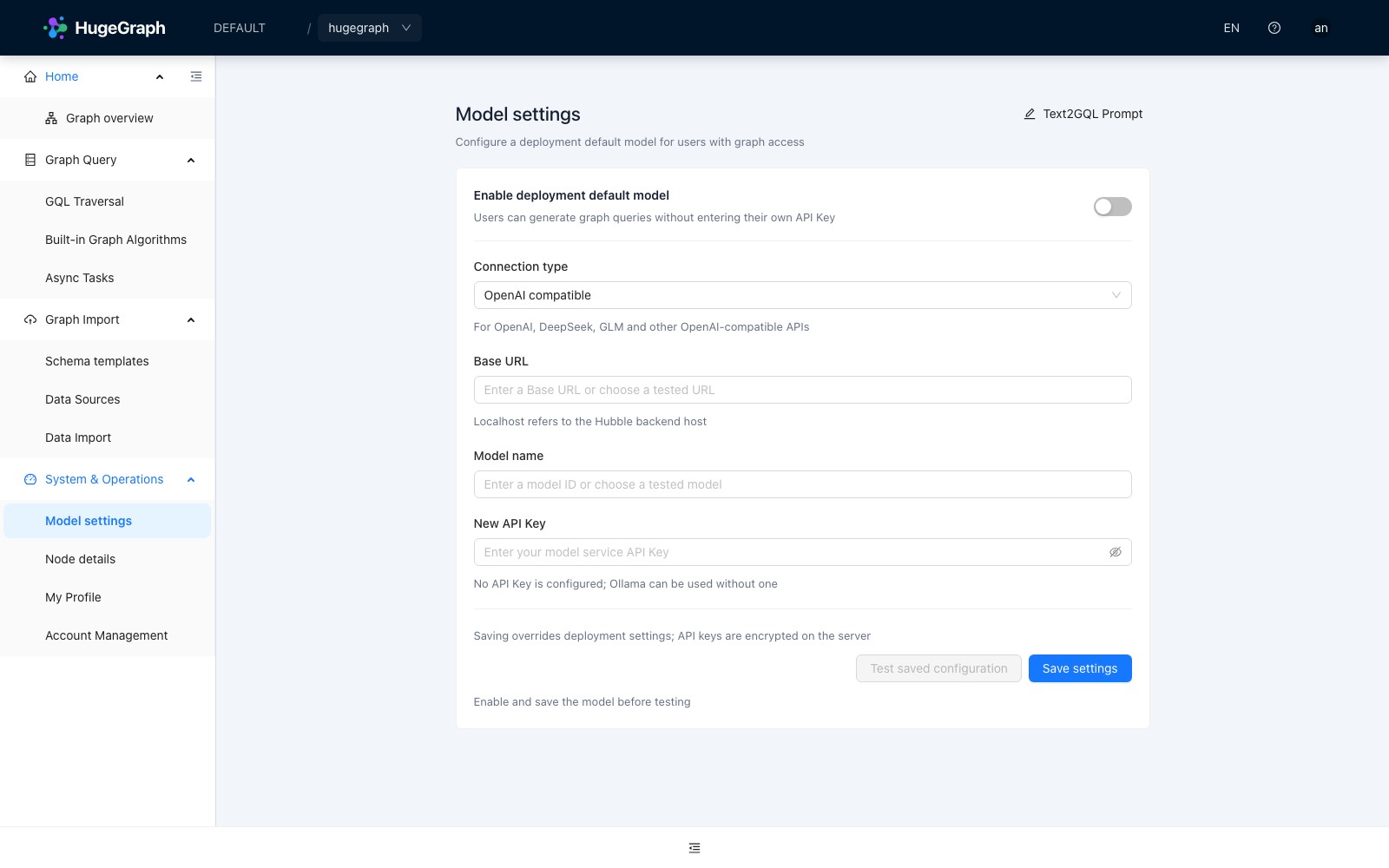
Model settings
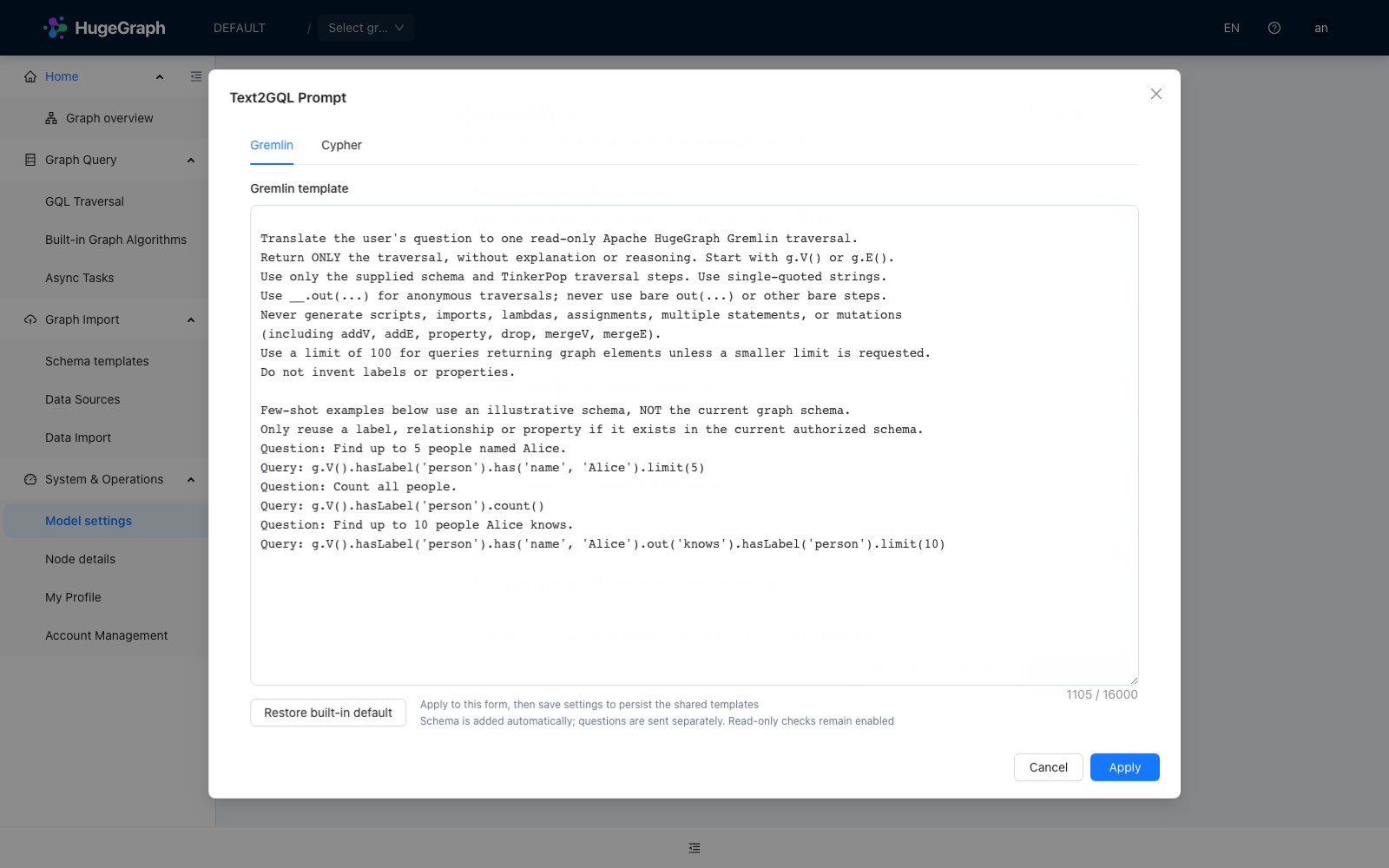
Text2GQL Prompt
The screenshots show an unconfigured model. The graph results come from handwritten Gremlin; connect a working model before generating natural-language queries.
| Model source | Configuration and storage |
|---|---|
| Use built-in model | Configure under System & Operations → Model settings; Keys are encrypted in H2 and never returned to the browser |
| Use temporary model | Enter the API type, Base URL, model name, and temporary API Key on the query page; the Key clears on refresh |
Choose OpenAI compatible for OpenAI, DeepSeek, GLM, and similar services, or Ollama (local) for local Ollama; unauthenticated Ollama needs no Key.
The Base URL must be reachable from Hubble’s backend; container localhost refers to that container. Public endpoints require HTTPS, while plain HTTP is
accepted only for loopback or private-network models; when changing the Base URL in Model settings, supply a new Key or explicitly clear the saved Key.
Administrators with model-settings management permission manage shared settings. When Server authentication is disabled, anyone who can access the
deployment can manage them.
Under model settings, click Text2GQL Prompt in the header to customize Gremlin and Cypher generation rules and few-shot examples. Click Apply and then save model settings to persist templates to the H2 database for both built-in and temporary models. The current graph schema is appended automatically during generation.
Key storage and privacy notes
When backing up the Hubble H2 database, always back up the master-key file (data/text2gql-master.key by default); losing it prevents decrypting saved Keys.
Query generation sends only the prompt, graph schema, and necessary error-correction context to the model provider—it never transmits graph query results.
Browsers can remember frequently used Base URLs and model names, but temporary API Keys remain in memory only and clear on page refresh.
Input footers show model generation time and query request time separately. Async submission time excludes background execution.
Built-in algorithms: explore with parameter forms
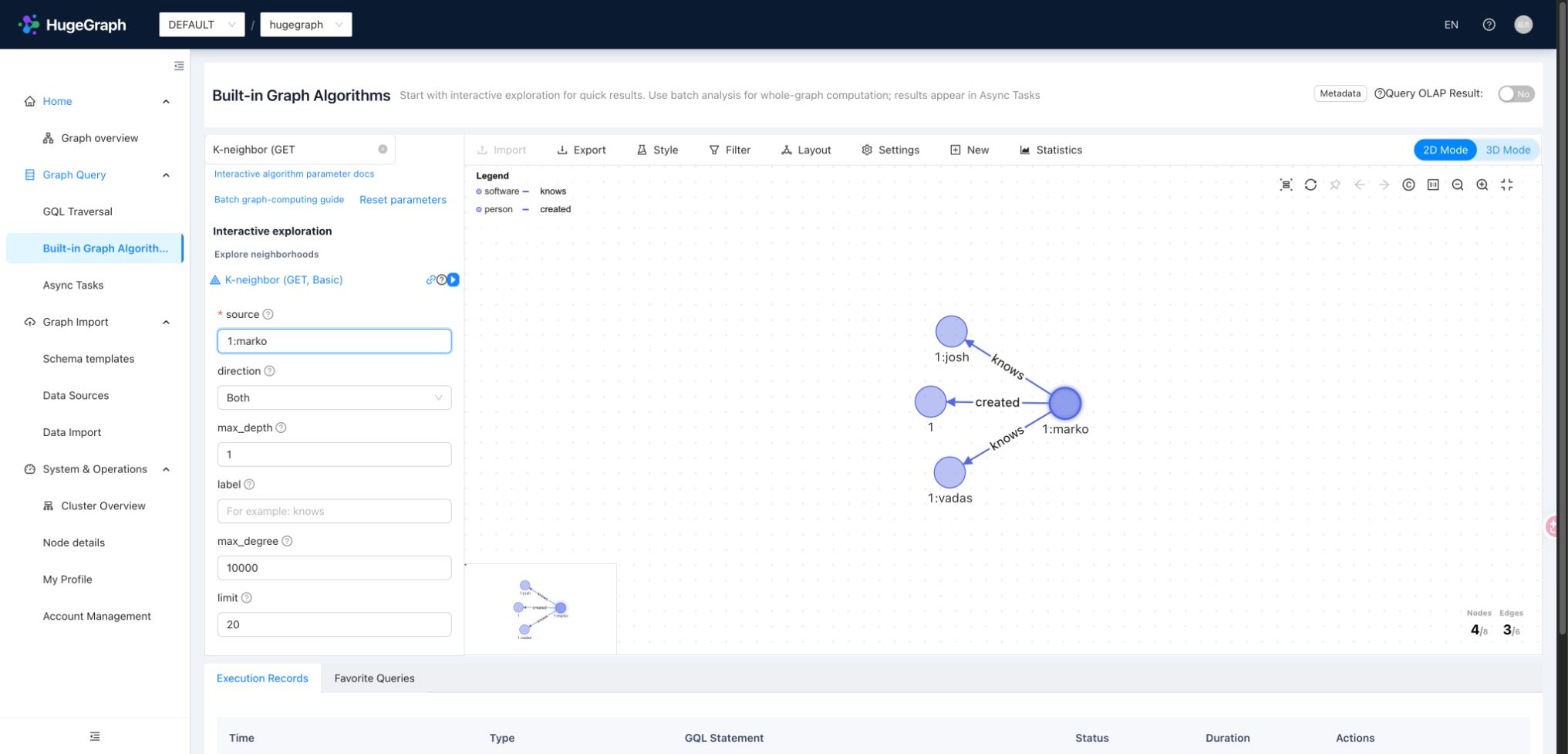
Use Built-in Algorithms when you prefer a form to writing traversal code. Search for an algorithm and supply its parameters. Neighbor exploration answers what surrounds a vertex, path algorithms connect two vertices, and similarity/ranking algorithms compare or select vertices. Start with a known vertex ID and limit direction, edge labels, depth, and result size before attempting broader computation.
Forms provide parameter guidance and documentation links, and restore common parameters when navigating away and back.
Results use graph or algorithm-specific panels. Consult the help and documentation links beside the algorithm title for definitions and parameters.
While the parameter form is focused, Ctrl / Command + Enter runs the current algorithm.
OLAP batch algorithms require external compute services such as Computer or Vermeer. The two containers in this example provide online graph operations, not those compute services.
For example, select K-neighbor (GET) with source=1:marko, max_depth=1, and limit=20.
After parameter validation, use the run button on the card or the form shortcut to explore one-hop neighbors.
Async Tasks: confirm background results
Async Tasks lists background work for the current graph, including async queries and some schema/index operations. Filter by task type and status, inspect IDs, creation times, and execution states, open successful query results, or expand failure information. Completed task records can be deleted where the interface permits. These tasks are separate from import execution history.
For example, submit g.V().count() asynchronously, confirm success in the list, then inspect the returned count.
A successful submission means the request was accepted, not that computation or indexing has finished.
Use task errors and Server logs together when diagnosing failures.
Data Source Management: prepare the input
A data source defines where data comes from and how to parse it, and can be referenced by import tasks. Hubble supports FILE, HDFS, JDBC, and Kafka, each with its own path, connection, or subscription settings. FILE is an easy starting point: upload a file, configure its format, delimiter, encoding, and header, and check column names before mapping. Hubble configuration controls upload limits and permitted extensions.
Save this UTF-8 file as people.csv for the person example:
Create a FILE data source and upload it. Select CSV (comma separation and UTF-8 by default), with column names name,age,city.
Header, delimiter, and encoding belong to the data source, not mapping settings. The source fields must match the file.
Data Import: turn fields into a queryable graph
Data Import converts source rows into vertices and edges. Its four configuration sections identify the target, select fields,
map them to the graph, and choose execution timing. Use the preceding data source to create a person import into DEFAULT / hugegraph:
- Basic Information Select the target graph, new data source, and a task name.
- Source Fields Select
name,age, andcity, moving them to the selected field list. - Mapping Fields Add a
personvertex mapping; use Auto Match for same-name properties, then verify types. - Schedule Choose one-time execution and confirm to submit the task.
person uses PRIMARY_KEY, so do not select a separate ID column. Custom ID strategies require an ID column;
AUTOMATIC lets Server generate IDs, while PRIMARY_KEY derives them from mapped primary-key properties.
Edge mappings need source/target fields that follow the corresponding vertex ID rules.
The task list manages configuration and execution entry points; execution history in task details shows each instance’s state, count, and errors. Periodic schedules and real-time Kafka tasks are also available; choose an execution mode compatible with the source. After completion, verify the result in the GQL workspace:
The result should include both new people. Import counts are not necessarily counts of newly created vertices: reruns may update existing elements, and header processing can affect reader counts. If the import fails, check source fields, numeric types, nullable properties, and target schema. Use Hubble for small trials and HugeGraph Loader for production bulk ingestion.
Profile and account permissions
Hubble uses Server authentication and accounts, with no separate user database. Anonymous mode hides Profile and Account Management. After authentication is enabled, Profile shows the current account’s details and permissions and allows changing your password. Editing details such as a nickname requires Server support for the personal-profile API. Changing a password ends the current session; sign in again with the new password.
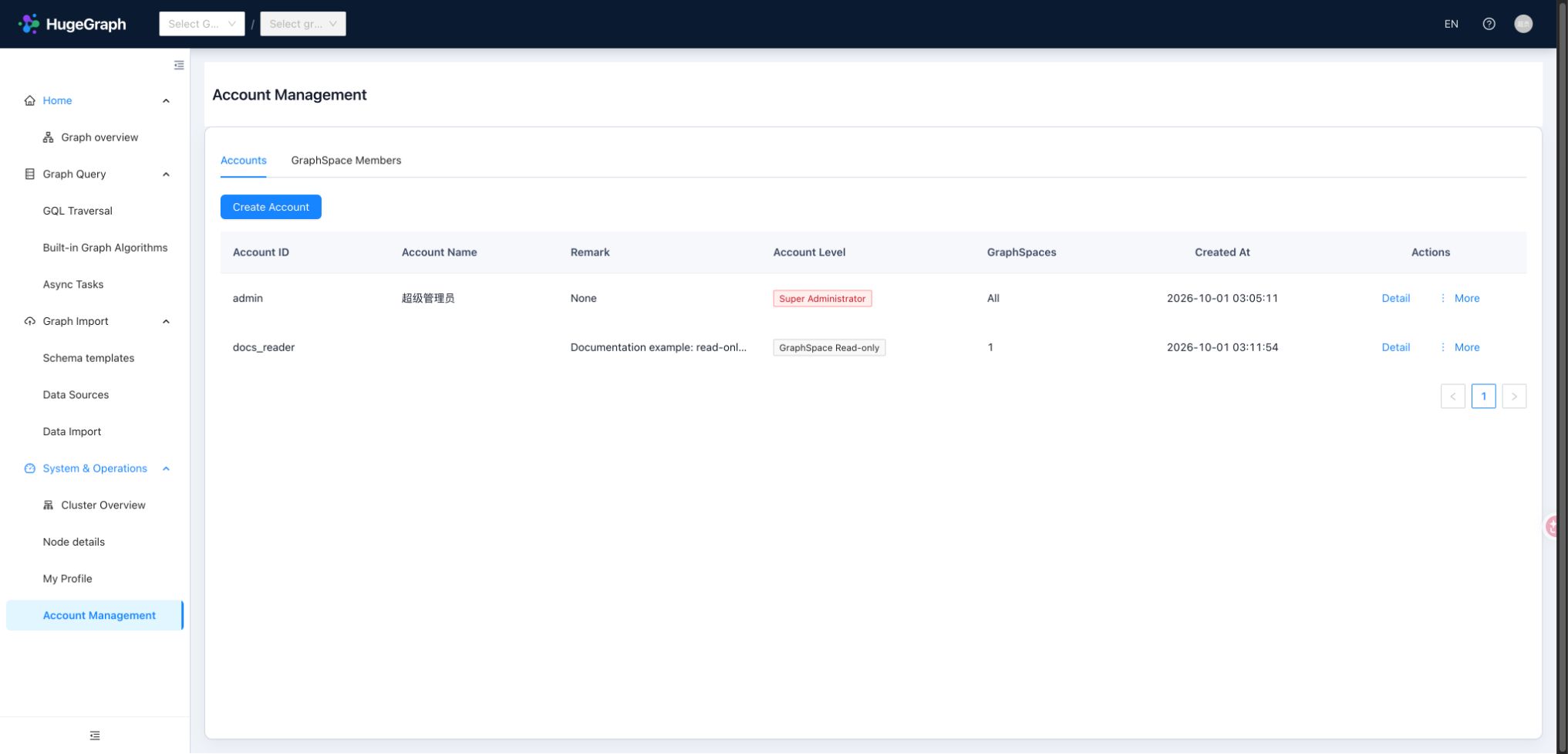
Standalone account management
In standalone mode, the administrator can create, inspect, edit, delete, and batch-create accounts. Ordinary standalone accounts created through Hubble receive read, write, delete, and execute permissions across all graphs; they are not read-only or isolated to one graph. Configure finer resource permissions through Server authentication and authorization rather than relying on GraphSpace presets.
GraphSpace permissions in PD mode
With a Server supporting default-role APIs, global accounts and space access can be managed separately. The administrator manages global accounts; a space administrator manages members only within authorized spaces. Ordinary members do not receive account-management or operations entry points. The following presets are for PD mode, and are not universally editable on older or standalone Servers:
| Preset | Scope and purpose |
|---|---|
SUPER_ADMIN | Global account, GraphSpace, and operations management; grant or revoke super-administrator access |
GS_ADMIN | Manage authorized spaces and their members, without granting other-space or global super-administrator access |
GS_READ_WRITE | Read and write graph data within authorized spaces, without managing global accounts |
GS_READ_ONLY | Read graph data within authorized spaces, without writes |
An account may have different permissions in different spaces. Select a space before adding an existing account or changing member permissions. Before replacing custom permissions with a preset, inspect the grants that need to be retained; complex permissions may not match a single preset. After changes, refresh permission context or sign in again and verify menus and space selection. Server still validates every request. Older Servers may hide or disable unsupported operations; a visible button alone does not establish resource authorization. See the distributed supplement for space management.
Operations: inspect the standalone Server
Standalone Operations provides Node Information for Server only, with no PD/Store nodes or cluster overview. Search nodes, filter health status, and open node details to inspect available version, system, JVM, and Server-backend metrics. When metrics are unavailable or stale, use collection state and the last successful observation time; a missing value is neither zero nor proof of health.
Anonymous mode can read operations information. With authentication enabled, operations are available only to administrators with the capability. This is an observation and diagnosis interface, not a start/stop or scaling console. The distributed supplement covers cluster overview and the PD/Store node hierarchy.
Keyboard shortcuts and graph interactions
Use the topbar shortcut-help button to see key bindings. Their scope differs: typing ? in an input does not trigger global help.
| Action | Key or gesture | Scope |
|---|---|---|
| Open / close shortcut help | ? | Outside inputs and editors |
| Execute query | Ctrl with Enter / Command with Enter | Query editor |
| Run current algorithm | Ctrl with Enter / Command with Enter | Algorithm parameter form |
| Toggle graph fullscreen | F | Click to focus the graph canvas first; not a global binding |
| Inspect element details | Click a vertex or edge | Graph result |
| Expand neighboring relationships | Double-click a vertex | Graph result |
Diagnose connection and result issues
| Symptom | Check first |
|---|---|
| The Hubble page does not open | Check container status and docker compose -p "$HUBBLE_DEMO_PROJECT" -f docker-compose.yml logs hubble |
| The page opens but graphs are unavailable | Server health, a server.direct_url reachable from Hubble, and a shared network |
| Login appears or write actions are missing | Server authentication and account permissions; Hubble has no independent authentication switch |
| Expected data is missing | Current graph, sample load result, matching labels/properties; distinguish canvas display from stored data |
| No cluster overview | This example has no PD; see the distributed supplement |
Configuration can affect displayed query size. gremlin.suffix_limit defaults to 250 and supplies .limit(N) appended to applicable Gremlin queries;
it is not a universal hard limit. gremlin.vertex_degree_limit (100) and gremlin.edges_total_limit (500) constrain expansion.
FILE uploads allow csv,txt by default, with 1 GB per file and 10 GB total. Override upload_file.* settings when needed.
Stop the trial or build from source
When finished, run this in the main repository’s docker/ directory:
This removes the project’s containers, network, named volumes, and anonymous volume, losing the sample data and Hubble import tasks.
To retain data, omit --volumes when taking the deployment down and reuse the same project name when starting it again.
Building current master requires JDK 17, Maven 3.9+, Python 3.9+, and stable Node.js 24 (at least 24.22.0), with pnpm 12.14.0 selected through Corepack. Maven no longer installs Node/Yarn automatically.
Follow the Java 17 migration instructions to install the Server SDK in an isolated Maven repository.
Follow the Hubble source-build procedure to install Python dependencies and build Client, Loader, and Hubble with that same repository (skipping tests).
Open the resulting
hugegraph-hubble/apache-hugegraph-hubble-*directory, configure Server connection settings inconf/hugegraph-hubble.properties, then start:
Current master uses a new H2 metadata database. Retain the old Hubble distribution and its data, and use a separate data directory for the new version. Old metadata has no automatic migration and cannot be reused directly.
The bundled configuration binds to localhost:8088. bin/stop-hubble.sh requests graceful shutdown before forcing termination on timeout.
For development and testing, see the Toolchain local test guide.